
Features › Decisions
Decisions in process maps
Make the next step clear for each outcome
Show your team which route to follow when a process reaches a Yes or No decision.
Decisions in ProcessPro show where a process or value stream branches. Give each decision a clear question, assign responsible roles and connect its Yes and No routes to the steps or endpoints that follow.
Show what happens when the answer changes
A process that only shows the approved route leaves people guessing when a request is rejected. They may know that someone needs to decide, but not who is responsible or what should happen after a No.
Put both outcomes on the map. Your team can see who makes the decision, which steps follow each answer and where a route ends, without relying on a colleague to explain the exceptions.
Make both outcomes part of the process
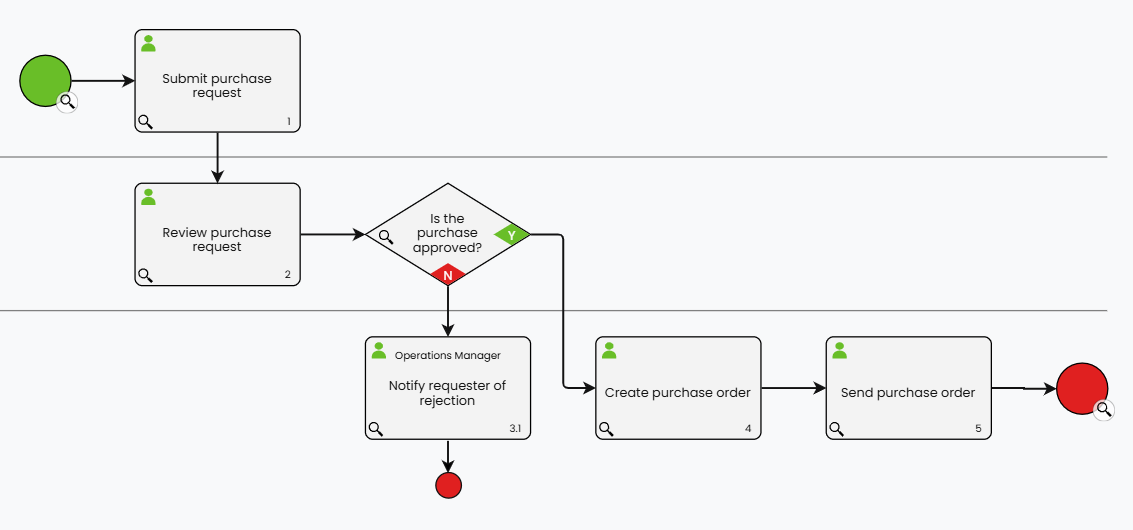
In Purchase request review, the question “Is the purchase approved?” separates the two outcomes. A Yes leads to “Create purchase order”. A No leads to “Notify requester of rejection”, then the request ends.
Use each decision to show:
- The question that determines the next step.
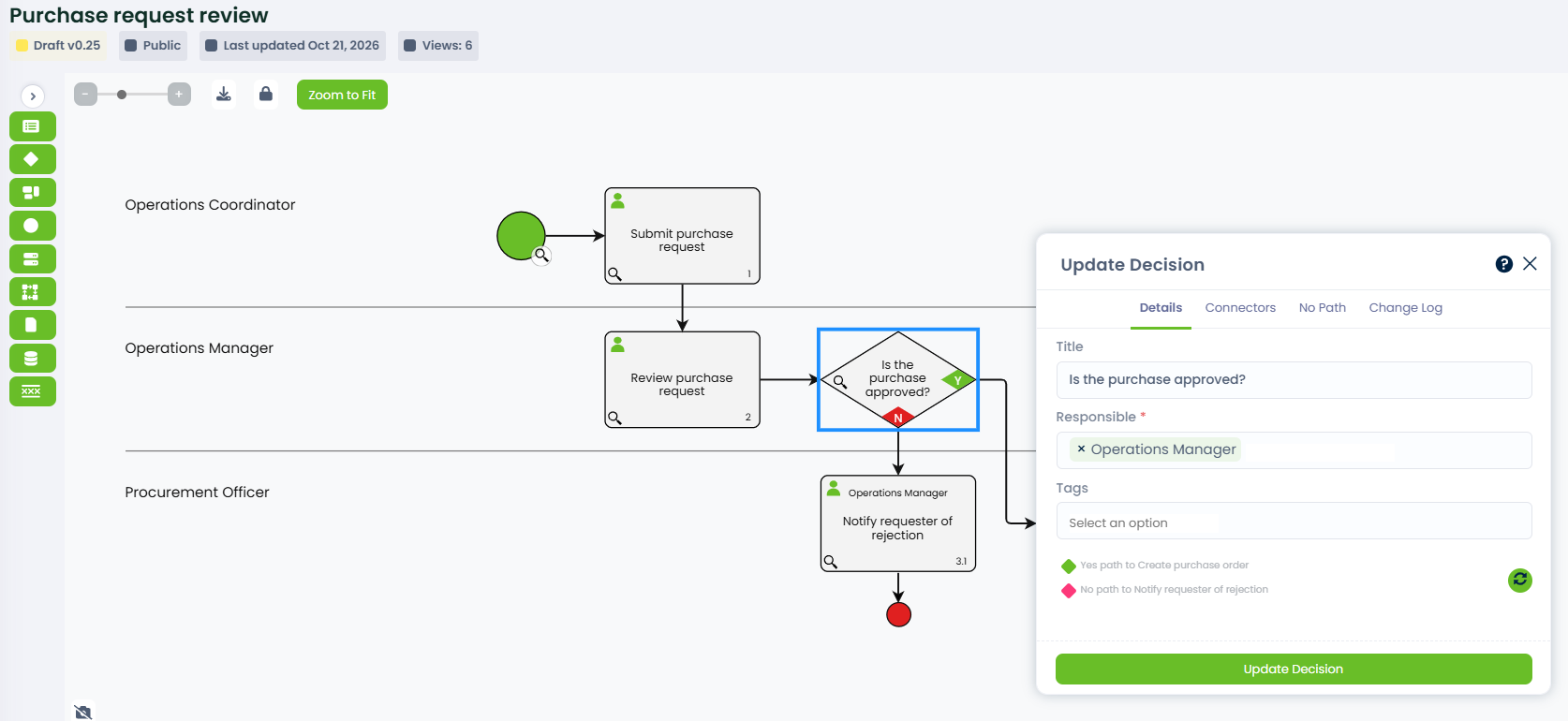
- The roles responsible for making the decision.
- Where the Yes and No routes lead.
Green Y and red N diamonds distinguish the routes, helping people follow the right branch through the process map.
Clear outcomes, responsibilities and next steps
Make the decision understandable to the people following the process and the team reviewing how the work should happen.
Follow the right route
Show the steps that follow a Yes and a No. In Purchase request review, approval leads to a purchase order, while rejection leads to a notification. People can see which work belongs to each outcome before they act.
Know who makes the decision
Assign responsible roles to the decision. The Operations Manager decides whether the purchase is approved, while the procurement officer handles the purchase order.
This makes the handover clear, so staff know who decides and who carries out the next step.
Make the stopping point clear
Use an endpoint to show where a route finishes. A rejected purchase request ends after the requester is notified. Staff can see that the order steps do not apply to that outcome.
Keep the question and responsibility together
A useful decision tells people what needs an answer and who should provide it. Assign responsible roles to the decision so that responsibility stays visible alongside the question and its Yes and No routes.
EXAMPLE
In Purchase request review, the Operations Manager completes “Review purchase request” and answers “Is the purchase approved?”. A Yes passes the work to the procurement officer. A No keeps the next step with the Operations Manager, who must notify the requester of rejection.
The map documents the decision and its consequences. The Operations Manager assesses the request and makes the approval decision, giving the team a clear reference for what should happen next.
Follow both routes in the diagram content menu
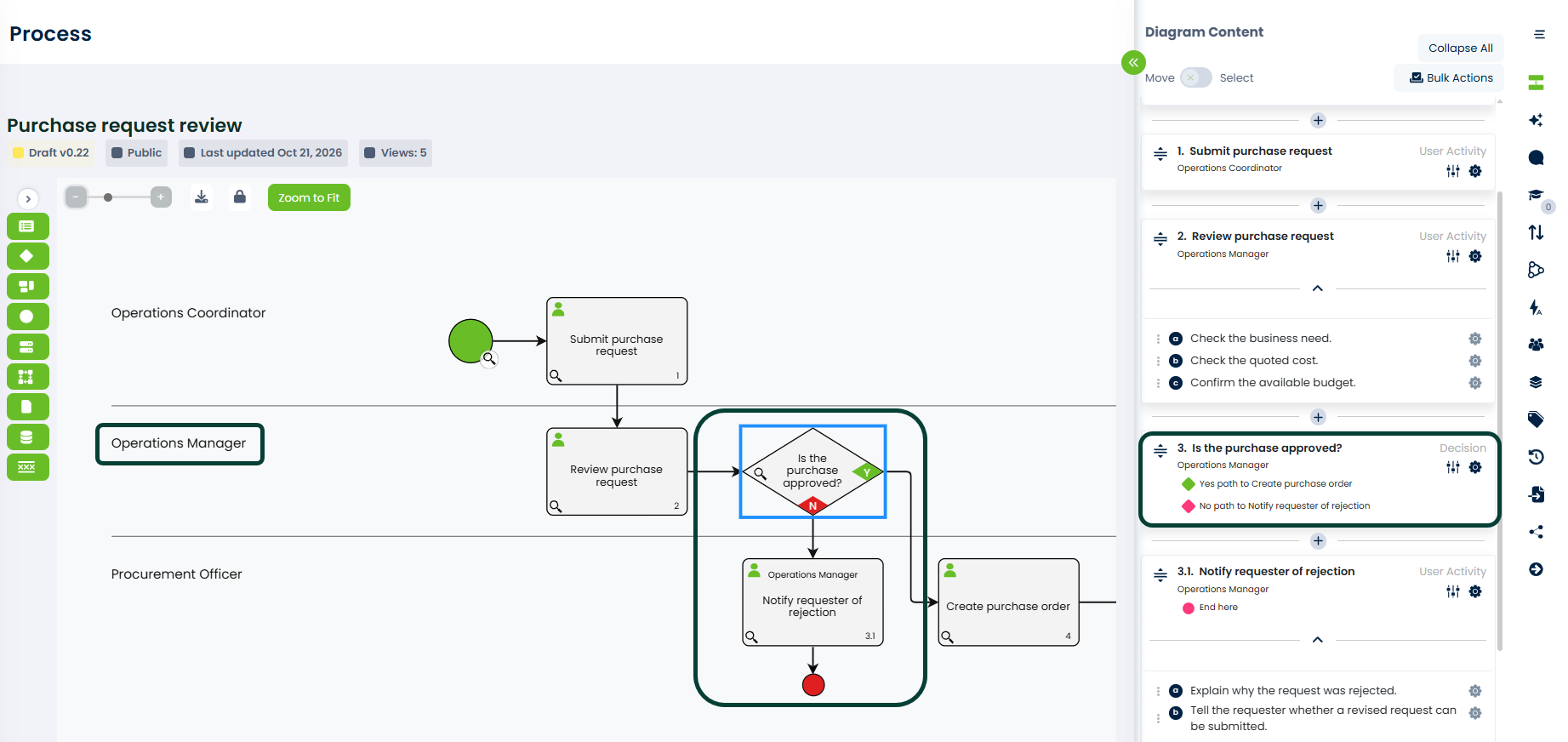
The diagram content menu also shows green and red diamonds for the Yes and No routes. People reading Purchase request review can identify both outcomes while working through the process steps, as well as on the map.
Connect decisions to the work around them
Activities show the work before and after a decision. Activity tasks set out the smaller checks. In Purchase request review, those checks help the Operations Manager assess the request before deciding.
Decisions can be used in processes and value streams. Either the Yes or No route can be the main path, so the map can reflect how your team describes the work.
Adding or updating a decision increases the process or value stream version number, recording that the documented process has changed.
Give your team a clear route for each answer
Show who makes the decision and what follows each outcome. Request a demo to see how decisions in ProcessPro help your team understand the routes through a process.