
Process tracking software shows where every business process stands: who owns it, whether it is current, which reviews and approvals are outstanding and whether people are using it. Some tools also track each piece of work as it moves through the steps, recording who completed each step and when.
Most teams can tell you where a project stands. Fewer can say, with confidence, whether the process people follow today is the approved version, when it was last reviewed or who is responsible for keeping it current. This guide explains what process tracking software covers, what to look for and how ProcessPro handles it, including where its limits are.
What is process tracking software?
Process tracking software gives you a live view of your processes rather than a folder of diagrams. It answers questions such as:
- Which processes are published, in draft or awaiting approval?
- Who owns each process, and who reviews or approves changes?
- Which reviews are overdue?
- What changed, when, and who approved it?
- Are people using the processes, and what feedback are they giving?
There are two kinds of tracking, and it helps to know which one you need.
Tracking the process itself. This covers each process’s status, owner, review dates, approvals and version history. It tells you whether your process library is current and controlled.
Tracking work as it runs. This follows individual work items, such as a request or an onboarding case, through the steps of a process and records who completed each step and when. This is closer to workflow software.
If you are looking for tools that monitor equipment or production lines in real time, that is a different category. This guide is about business processes.
What to track
Status
Every process should have a clear status, so people know what they can rely on. A published process is the approved version for everyone to follow. Drafts, future states and items awaiting approval are still being worked on.
Ownership
A process without an owner drifts. Track who owns each process and who reviews and approves it, so there is always someone accountable for keeping it current.
Reviews and approvals
Processes need regular review. Track review dates, overdue reviews and approval requests that are still waiting for a response.
Changes and versions
When something goes wrong, or an auditor asks, you need to see what changed, who changed it and which version was in use. Version history makes that possible.
Use and feedback
A current process only helps if people use it. Track who views processes and how often, and capture feedback from the people doing the work.
How ProcessPro tracks your processes
ProcessPro is built to keep processes current, owned and controlled. These features handle the tracking.
Statuses at a glance
Statuses show where each process sits in its lifecycle: draft, published, overdue, future state, offline, private, awaiting approval and approval declined. Offline and private are chosen by stakeholders or administrators when they need tighter control. Only published processes are open to the wider team. Drafts stay with stakeholders and administrators. Offline and private items are restricted so people without a stake in them cannot open them.

A dashboard for what needs attention
The dashboard is each user’s landing page. It shows items you own, overdue reviews, all your tasks and notifications relevant to you, and each user can adjust it to show what matters most to them.
Tasks and notifications
Tasks and notifications make sure important actions happen. Tasks are actions that need to be completed in the system, such as approving a process before it is released, acknowledging a new policy, or providing requested details on an activity. Reminder tasks can also be added from the tasks list. Notifications keep people informed about changes, such as a newly published process.
Approval progress
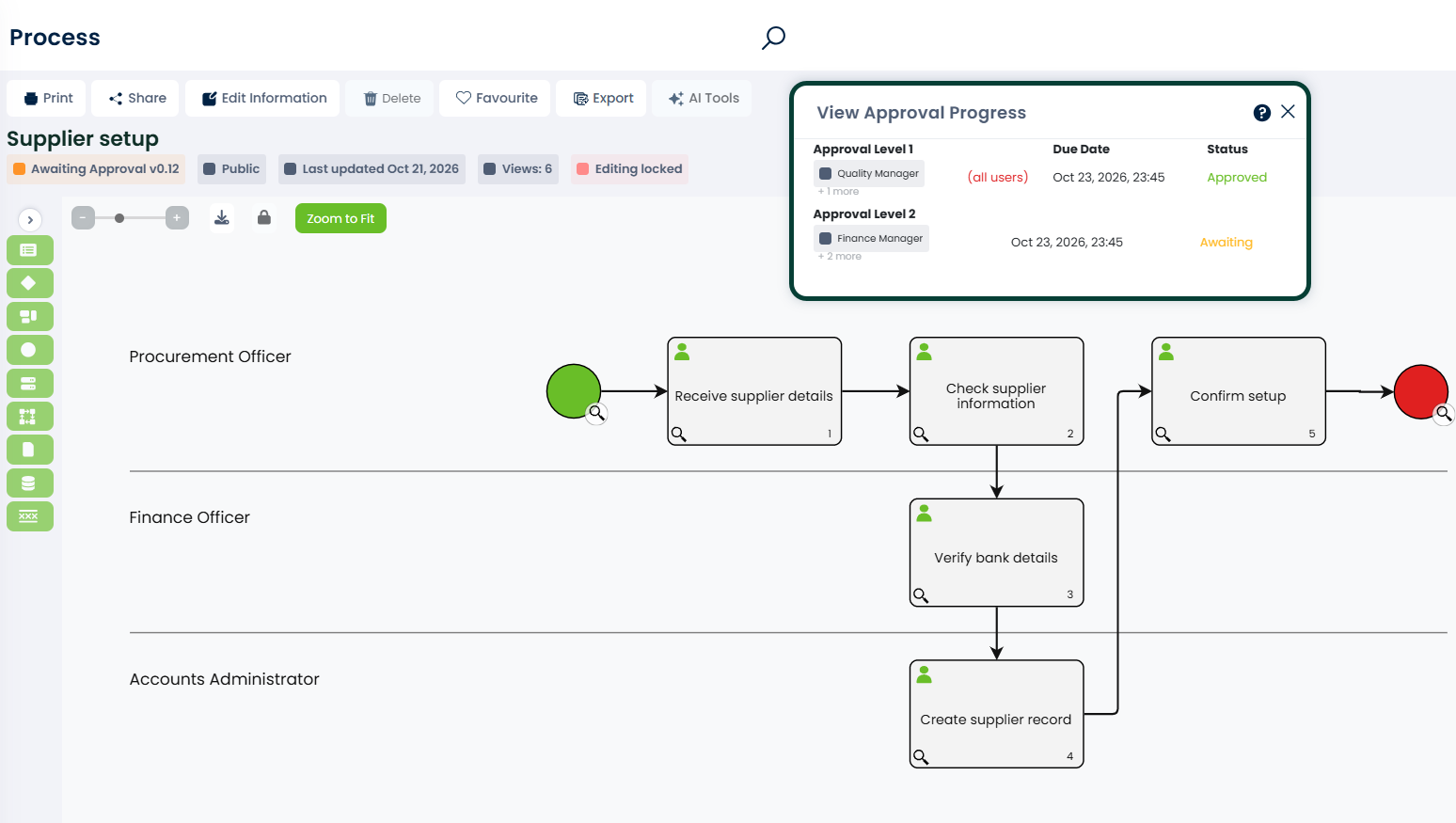
With process approval, approval tasks are sent in a set sequence. Stakeholders can see who has approved and who still needs to respond, and the Approval Requests report shows pending requests without opening every process.
Reports
Reports cover outstanding tasks, items awaiting approval, feedback and engagement. The System Engagement report shows which processes people are viewing, how many unique users view each item and how many times each person has viewed it. Access is permission-based, and many reports can be exported.
Version history
Historical records store earlier versions of processes, value streams and managed documents, so you can review past changes or restore a previous version.

Ownership that survives change
ProcessPro is a role-based system. Responsibilities belong to roles rather than individual users, so when someone new steps into a role, they take over its responsibilities without each process being updated by hand.
Tracking work as it runs: Workflow
If you need to track individual work items, ProcessPro’s Workflow feature guides them through defined steps, tracks progress and records who completed each step and when. Dynamic Forms capture structured information with required fields, validation and conditional rules. Automation Flow uses triggers, conditions and actions to handle repeatable steps.
To be clear about availability: Workflow, Dynamic Forms and Automation Flow are available with Enterprise contracts or as add-on features. They are not part of every plan. If step-by-step tracking of work items is essential for you, ask about it when you Book a Demo.
How to choose process tracking software
Ask these questions when you compare tools:
- Can we see the status of every process at a glance?
- Does every process have a named owner, reviewer and approver?
- Are overdue reviews and pending approvals visible without chasing people?
- Can we see what changed, who approved it and restore an earlier version?
- Can we tell whether people are using our processes?
- Do we need to track individual work items through each step, and is that included in the plan we are considering?
If you are comparing several tools, our guide to the best process management software sets out what each is built for. For an overview of ProcessPro itself, see business process management software.
Start tracking your processes
Pick the process that is hardest to keep current today. Give it an owner, set a review date, send it through approval and publish it. The dashboard and reports will then show you when it needs attention.
Start Free Trial to try this with five users for 30 days, no credit card needed, or Book a Demo to see ProcessPro applied to one of your own processes.
Frequently asked questions
What is process tracking software?
Process tracking software shows the status of your business processes: who owns each one, whether it is current, which reviews and approvals are outstanding and whether people use it. Some tools can also track individual work items as they move through a process. In ProcessPro, that second kind of tracking uses Workflow, available on Enterprise plans or as an add-on.
What is the difference between process tracking and process monitoring software?
The terms overlap. In business process management, both usually mean tracking the status, ownership and use of processes and the work that runs through them. Process monitoring software can also mean tools that watch equipment or production lines in real time, which is a different category. ProcessPro tracks business processes, not machines.
Can ProcessPro track who completed each step of a process?
Yes, with Workflow. It guides work items through defined steps, tracks progress and records who completed each step and when. Workflow, Dynamic Forms and Automation Flow are available with Enterprise contracts or as add-on features. Without Workflow, ProcessPro tracks the process itself: its status, owner, reviews, approvals and version history.
How can I see which processes are overdue for review?
In ProcessPro, a process is flagged Overdue within 30 days of its review date, and the dashboard shows the items you own, overdue reviews, your tasks and notifications. Review tasks are sent to stakeholders as a reminder as that date approaches. Reports cover outstanding tasks and items awaiting approval across the company.
Can I see whether people are using our processes?
Yes. The System Engagement report shows which processes people are viewing, how many unique users view each item and how many times each person has viewed it. Access to reports is permission-based, and many reports can be exported for further analysis.
Can I try ProcessPro for process tracking?
Yes. Start Free Trial gives you 30 days with five users and no credit card. You can build a process from scratch or turn an existing document into a draft with AI, then test ownership, approvals and reviews.

James Ross
James Ross is the CEO of ProcessPro. He works with organisations to make their processes easier to manage, review and improve. His focus is on giving teams clear ownership of their processes and a reliable way to keep them up to date.
Share this article