
Features › Screen Recorder
ProcessPro Screen Recorder for process guides
Turn browser actions into step-by-step instructions
Show your team how to complete browser-based work, with instructions and screenshots captured as you perform the task.
ProcessPro Screen Recorder captures clicks, form entries and navigation in Chrome or Edge. Review the captured steps, edit the screenshots and import the guide into ProcessPro, so colleagues have instructions to refer to when carrying out the work.
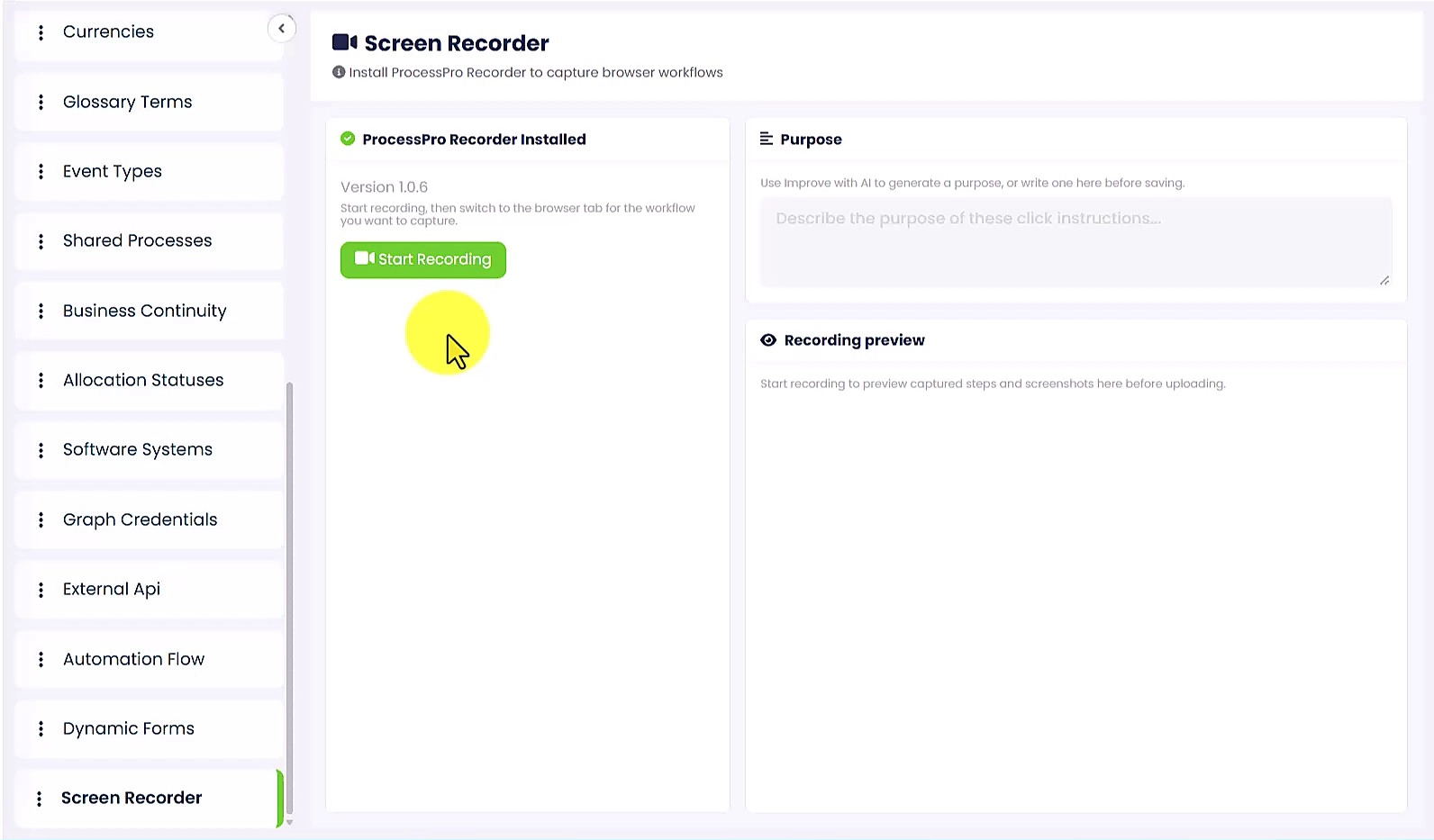
Document the work without retracing every step
Writing a system guide can mean repeating a familiar task just to capture screenshots and remember the sequence. Small actions are easy to overlook, leaving the next person unsure which field to complete or what to do next.
Screen Recorder captures browser actions and screenshots as you work. Your team can review that record instead of starting with a blank document, then add the explanations people need to carry out the task with less help from a colleague.
Capture, review and add the guide
In Log a maintenance request, the Facilities Administrator completes Create maintenance card in Trello. An administrator can record that browser task to show how to enter the issue and location, then review the guide before adding it to the process.
Turn the recorded task into useful guidance:
- Capture the browser actions as screenshots.
- Review the captured steps and edit the images.
- Import the guide into an existing process activity, save it as a managed document, or save it as a standalone document.
Recording covers browser actions only. Desktop applications, file uploads and system dialogs outside the browser are not captured. Your team must document any work outside that scope separately.
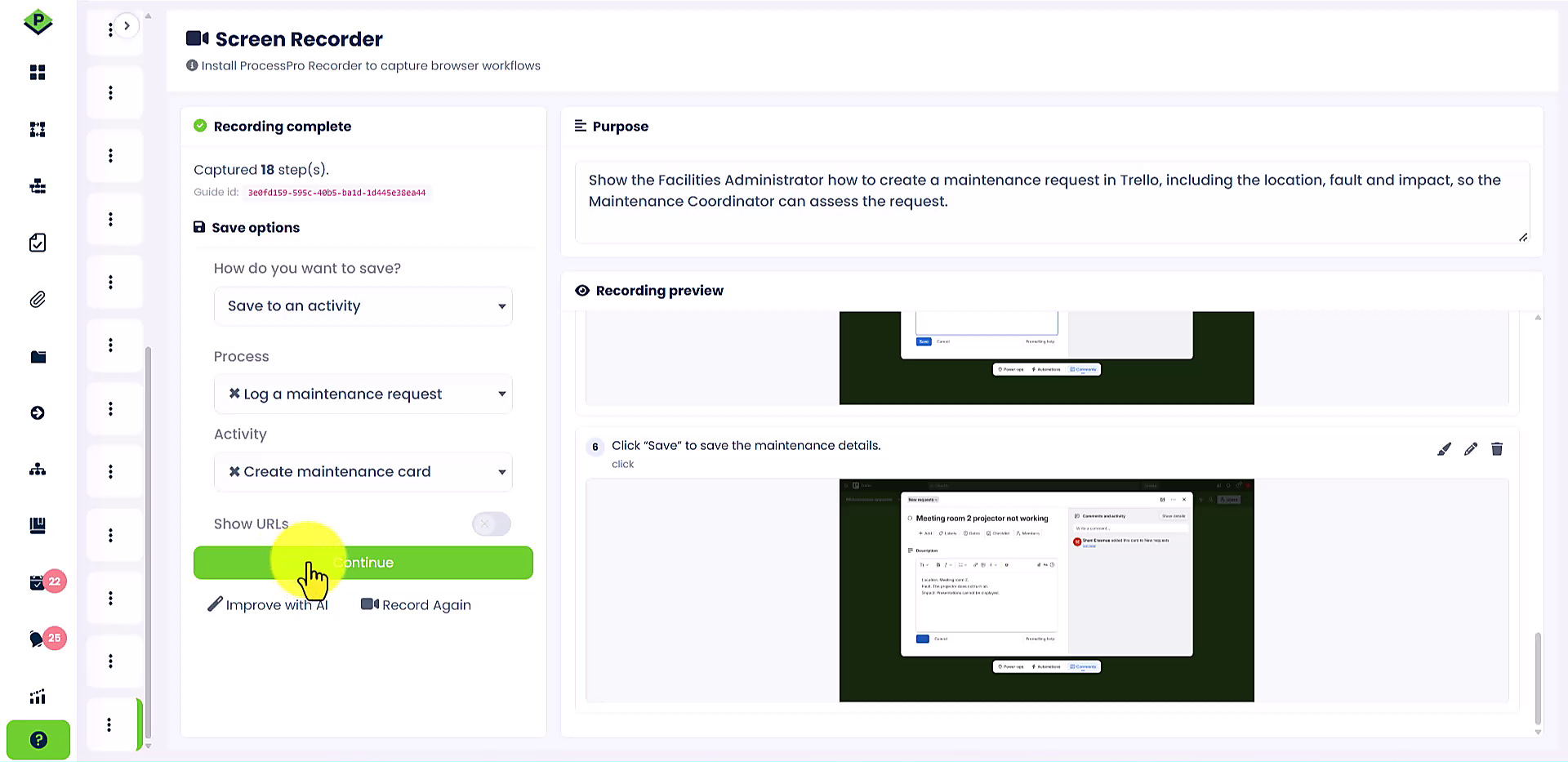
Screen Recorder in action
Give people instructions they can use
Turn a captured sequence into a practical reference, with clearer wording, focused screenshots and a format your team can share.
Capture details while you work
Clicks, form entries and page navigation are recorded with screenshots. This gives the author a starting point based on the task they performed, reducing the need to reconstruct it from memory. Review the capture to check that it shows the intended sequence.
Focus attention on the right detail
Crop screenshots to the relevant area and highlight the field or button people need. Redact sensitive information before sharing the guide.
These edits help someone unfamiliar with the system find the right action without distractions elsewhere on the screen.
Share a reference beyond ProcessPro
Export the reviewed guide as a PDF with step numbers, descriptions and annotated screenshots. People can use the document outside ProcessPro or refer to it offline. Your team decides when the instructions are ready to share.
Four ways to finish a recording
Once you’ve reviewed your steps, choose how the guide is delivered. Each option suits a different situation.
Your team can mix and match: record once, then save to an activity and export a PDF for a meeting or training session.
Save to an activity
Saves the steps as tasks within an existing process activity. Best when the work belongs in a live process and colleagues need the instructions alongside the surrounding activities and responsibilities.
Print PDF
Saves a PDF with step numbers, descriptions and annotated screenshots. Best when someone needs a quick reference sheet at their desk or for a one-off handover.
Save as PDF to activity
Generates the PDF and attaches it to an existing process activity alongside the process map. Best when the guide should live with the process but be readable as a standalone document.
Save as PDF to Managed Documents
Generates the PDF and stores it in ProcessPro’s Managed Documents library. Select the document type before saving. Best for controlled or versioned documentation that needs to be referenced outside a specific process.
Turn captured actions into clear instructions
Captured descriptions may be brief or technical. The Improve with AI button can rewrite them into clearer instructions while keeping the step sequence unchanged. Your team reviews the wording and makes any further edits before importing the guide.
EXAMPLE
For Create maintenance card in Log a maintenance request, the reviewed description could read: “Enter the location, describe the fault and explain how it affects the work.” This gives the Facilities Administrator more useful guidance than a description that only identifies a text field.
AI enhancement applies to all recorded steps without adding or removing them. It cannot reliably determine the purpose behind an action, so the author must check the instructions and add any missing context.
Keep the guide with the process activity
Add the reviewed recording to Create maintenance card within Log a maintenance request. The Facilities Administrator can refer to the recorded instructions and screenshots while completing the task in Trello.
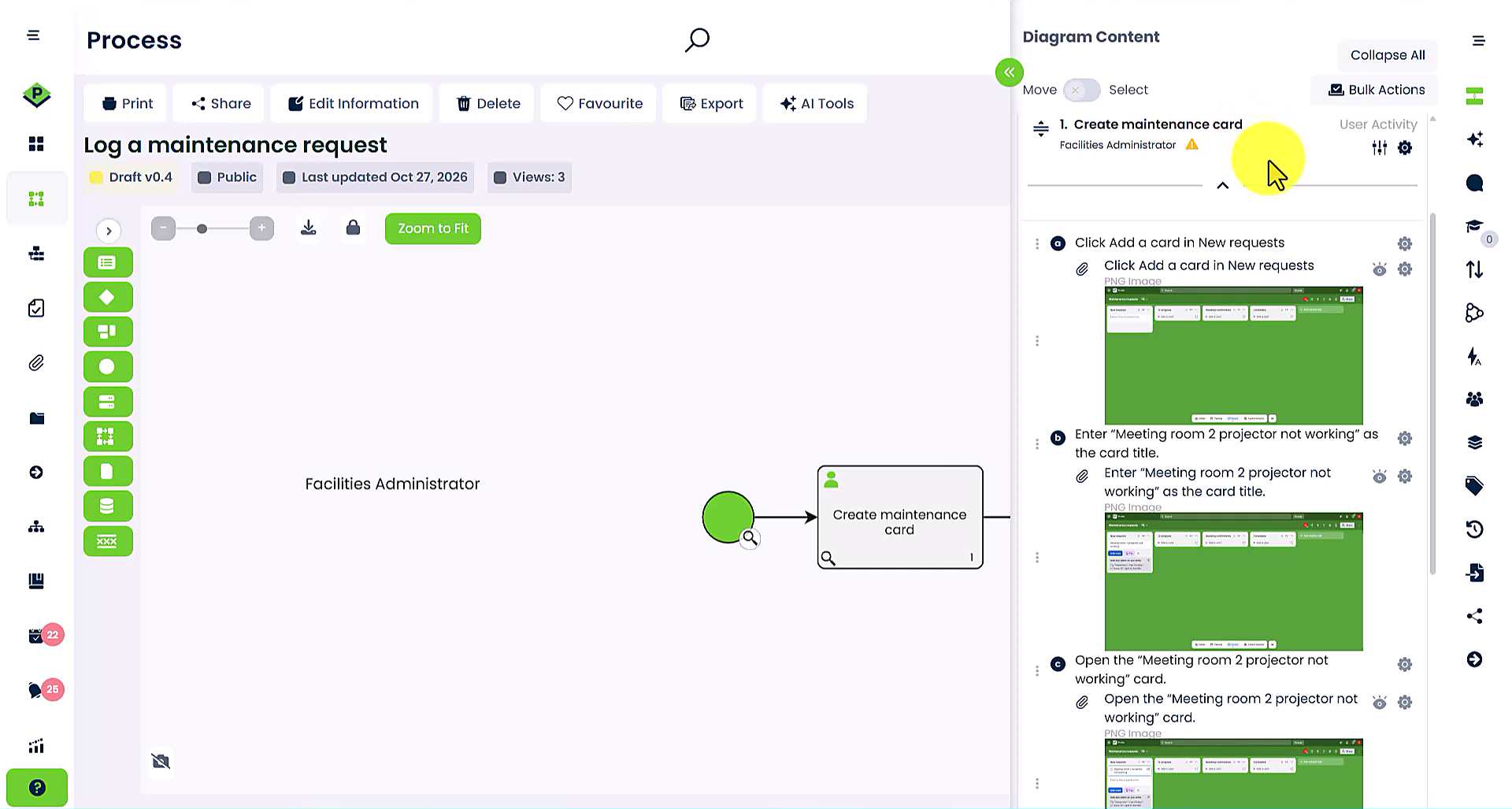
Connect system instructions to the wider process
Add the recording’s steps to an existing process activity, or save the guide as a managed document to share outside a process. Your team defines the surrounding activities and responsibilities, so the recorded system task sits within the work it supports.
Screen Recorder requires Chrome or Edge and the ProcessPro browser extension. Access is restricted to administrators. Before the scheduled 1 November 2026 release, contact ProcessPro to enable it for your company.
Install the Chrome extension · Install the Edge extension
Release 10.3.0 is scheduled for 1 November 2026 and will make Screen Recorder a standard feature for all companies. Administrator access will still be required.
Turn familiar tasks into guidance your team can follow
Show colleagues how browser-based work is done and keep the instructions with the process. Book a Demo to see Screen Recorder in ProcessPro.