
Webinar recap
TaskMap and ProcessPro webinar: what Scott Helmers and James Ross demonstrated
Webinar date: 22 September 2026
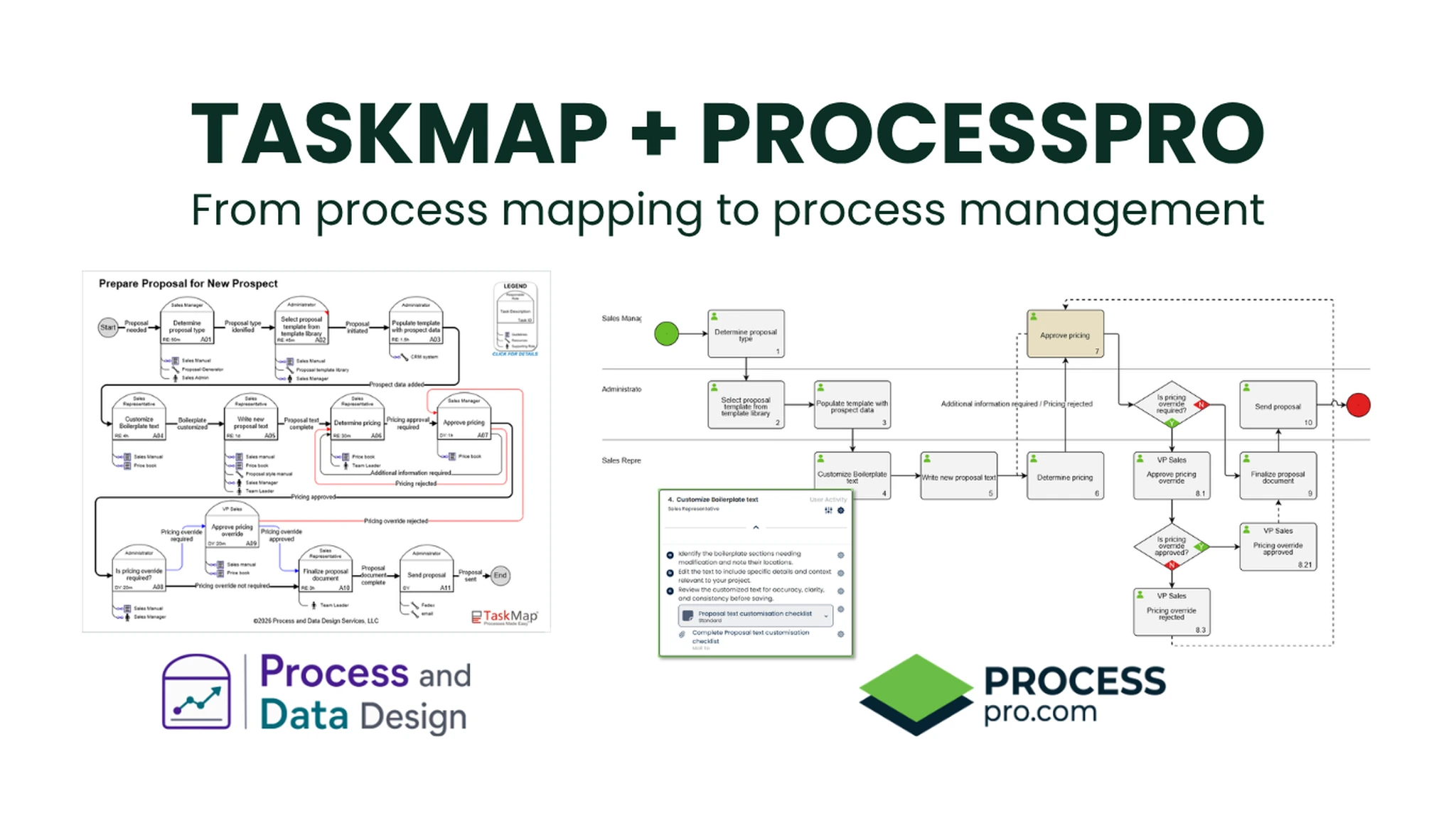
A process map can hold far more than a sequence of boxes. It can show the people, documents and decisions involved in the work. But when an organisation has dozens or hundreds of processes, it also needs a way to keep them accessible and current.
In our 22 September webinar, Scott Helmers, co-inventor of TaskMap, and James Ross, CEO of ProcessPro, demonstrated these two areas of process work. Both used a proposal process as an example. Scott showed how to build a detailed map in Microsoft Visio using TaskMap. James showed how to document and manage a process in ProcessPro.
Watch the webinar recording
Presenters

Scott Helmers
Co-inventor of TaskMap

James Ross
CEO of ProcessPro
Scott’s TaskMap demonstration: putting information into the map
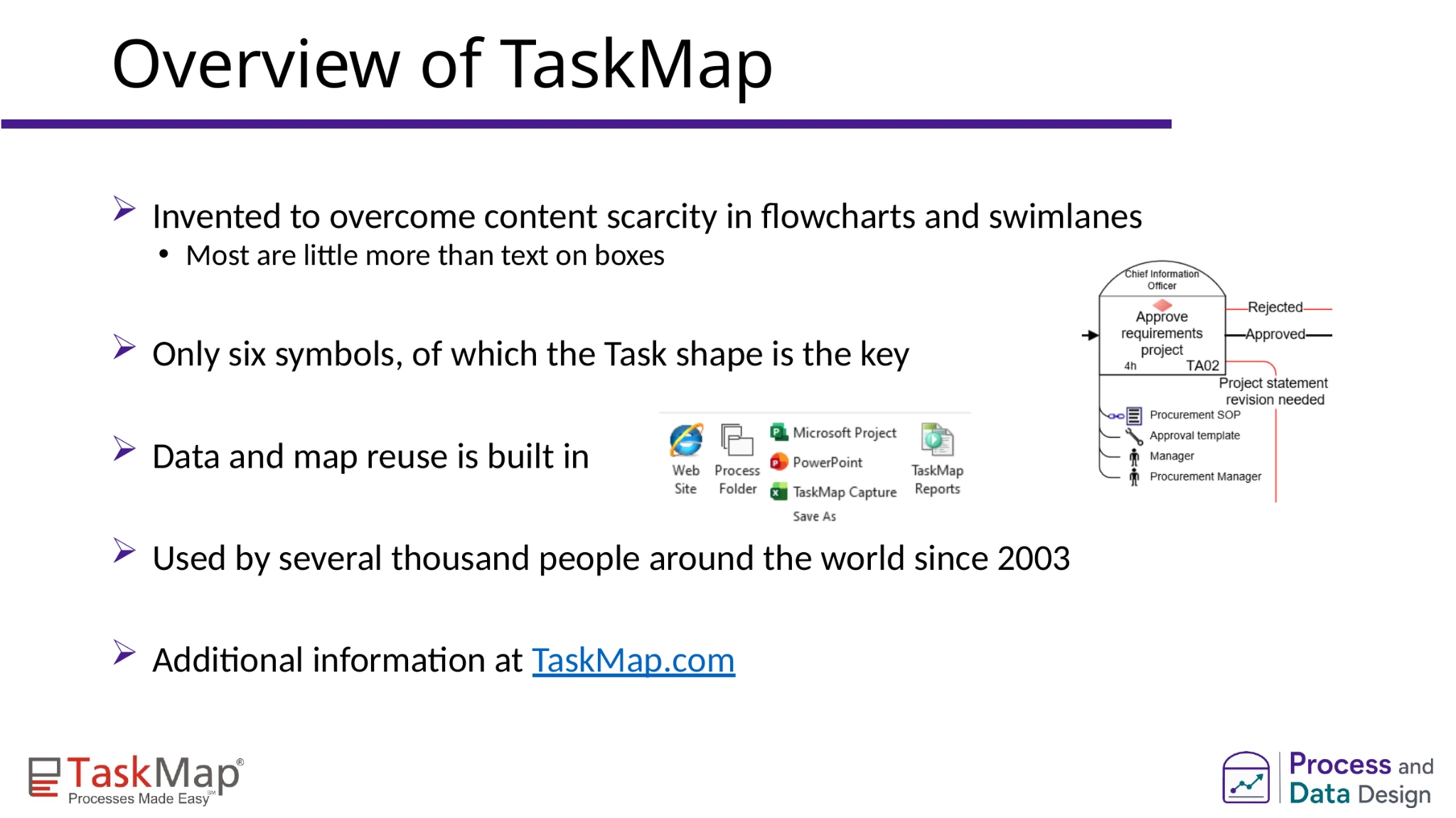
Scott began with a question about conventional flowcharts. If a box contains only a short task name, where does someone find the information they need to complete that task?
TaskMap is an add-in for Microsoft Visio that lets an author store information with each step. During the demonstration, Scott added a task description, guidelines, resources and roles. He also showed fields for how often a task occurs, how long it takes, notes, risks and controls.
Those details appear on the map in a consistent way. A reader can see, for example, which role performs a task and whether supporting guidance or a resource is available. Scott explained that this consistency helps people read maps created by different authors.
The shared example
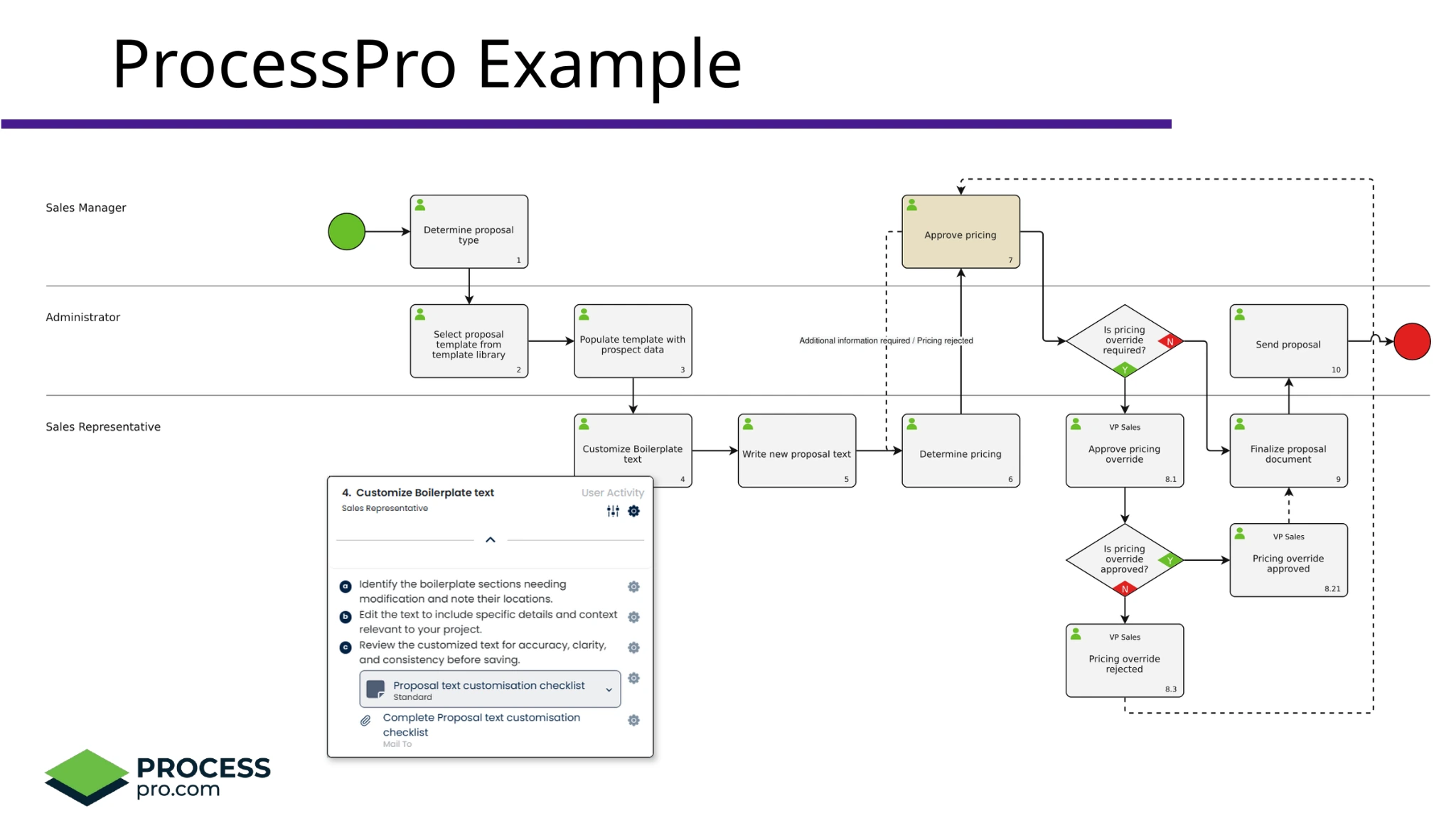
Both presenters used the same proposal process as their example: Scott built it as a detailed TaskMap in Microsoft Visio, James documented and managed it in ProcessPro.
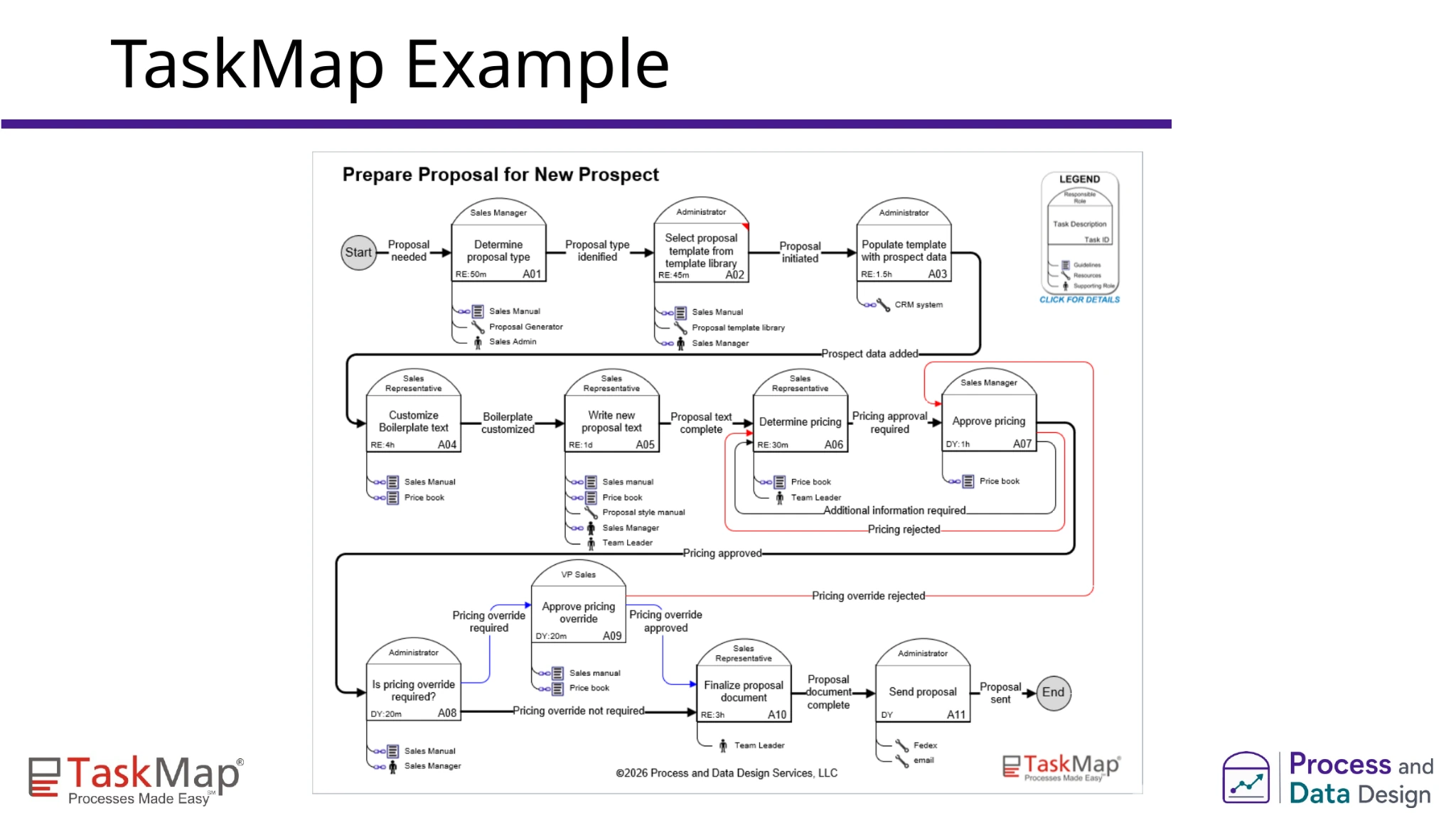
He then opened a completed proposal process. Rather than relying on the diagram alone, he could inspect the information attached to its tasks. He also showed how to mark decision tasks visually, even though TaskMap uses the same main shape for actions and decisions.
One useful part of the demonstration was the ability to change the view for different readers. Scott hid task details to show a simpler flow, then showed how someone could display only the information relevant to a particular audience. The underlying map stayed the same.
TaskMap can also reuse the information entered into a map. Scott generated an Excel report showing the roles involved in the proposal process. In the Q&A, an attendee suggested that this report could provide a starting point for a RACI matrix. Scott agreed that it identifies who is responsible and who else is involved at each step.
James’s ProcessPro demonstration: working with the process
James used a proposal process to show how ProcessPro presents activities in a visual map. He added a missing activity, “write new proposal text,” assigned it to a sales representative and entered an estimated duration. Once he assigned the role, the activity appeared in the appropriate swim lane.
He then opened the activity to show the information people can use alongside the map. Activities can include tasks, notes, tags and links to related content. In the example, a link opened a document in ProcessPro’s managed documents area. A user could consult it and return to the process.
James also demonstrated how a step can become a process of its own. He converted an activity for finalising a proposal document into a separate process. ProcessPro replaced the original activity with a link, allowing readers to stay on the main proposal map or open the more detailed process.
This gave the webinar a practical example of how to handle detail. A map can show the overall flow without trying to fit every instruction into one view.
How the two demonstrations connect
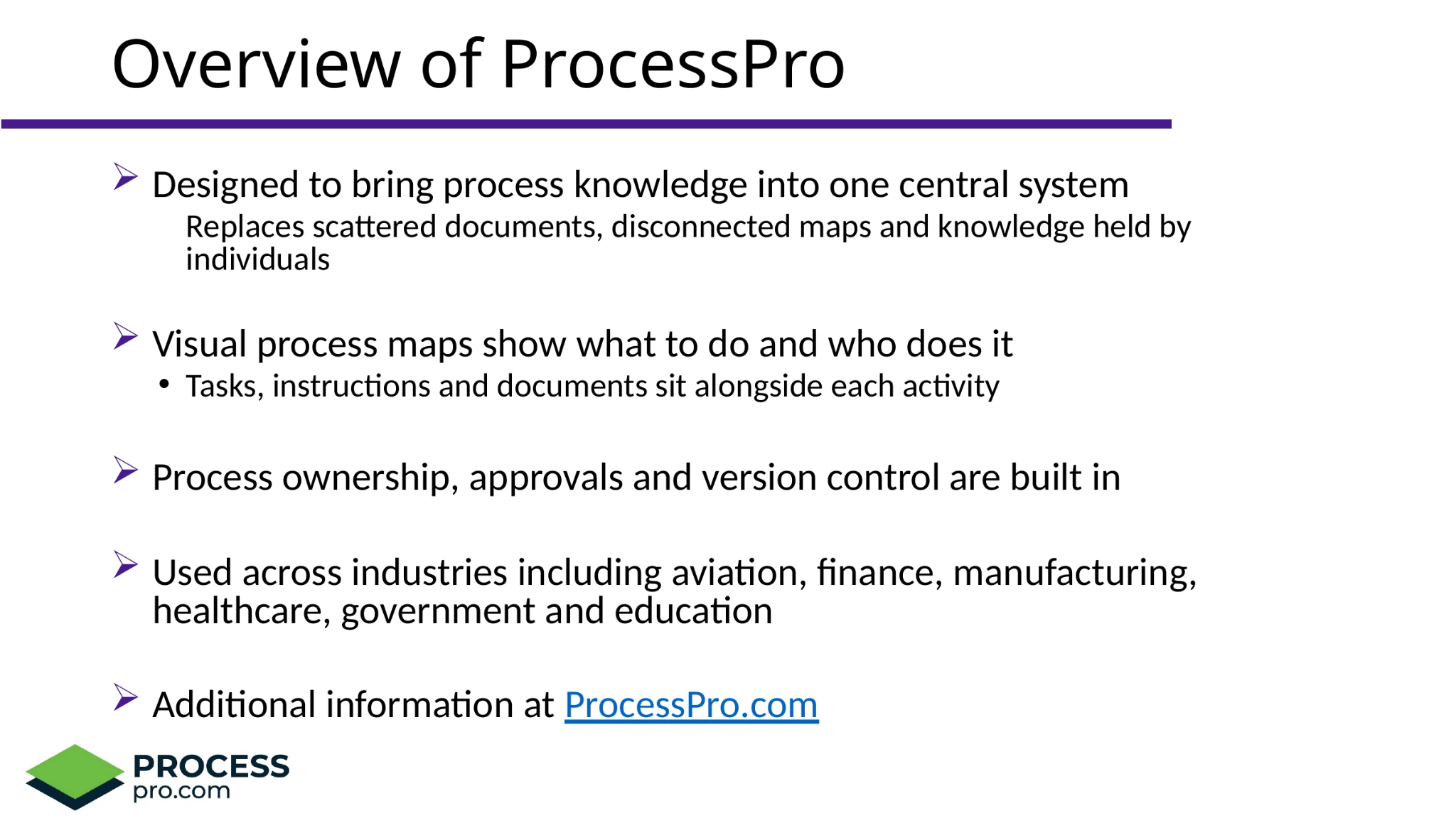
Scott and James approached the same proposal example from different starting points. Scott focused on the information held in an individual map and how different readers could use it. James focused on how a process sits with its activities, documents, roles and related processes.
Scott described the question that first interested him in ProcessPro: how do you manage the bigger picture when an organisation has more processes than one person can easily keep track of?
James showed part of that answer through process ownership and review cycles. He explained that a published process can have a responsible owner and a scheduled review. When the review is due, ProcessPro creates a task asking that person to check whether the process is still accurate.
That distinction also came up directly in the Q&A. Scott said TaskMap is suited to creating detailed individual maps in Visio, while someone building an enterprise process repository would need to consider the management and review capabilities James had shown.
He clarified one point that matters if you are evaluating both products: TaskMap and ProcessPro do not currently have a direct integration. A TaskMap file does not automatically become a process in ProcessPro.
What the audience asked about access and changes
Several questions focused on what happens after a process is shared.
From the Q&A
- Who can create, edit and change a process?
- Can a process appear inside SharePoint?
- Can a TaskMap be viewed without a Visio or TaskMap licence?
Asked whether anyone could update a process in ProcessPro, James explained that creating and editing content depends on permissions. A person also needs the appropriate stakeholder role on a process to make changes. Other users can send feedback to the stakeholders instead.
Another attendee asked whether processes could appear in SharePoint. James showed that a ProcessPro process can be shared through a link and embedded in an iframe environment, including SharePoint. Scott added that a TaskMap saved in SharePoint or OneDrive can be viewed in a web browser without requiring each viewer to have a Visio or TaskMap licence.
These questions went beyond drawing a map. Attendees wanted to know who could see process information, who could change it and how people would access it during their work.
Where AI fitted into the demonstration
James also showed ProcessPro’s AI tools. He generated suggested tasks for an activity and demonstrated an option that proposes process improvements. He explained that the tool uses information such as the process objective to give its suggestions context.
James showed how ProcessPro can suggest tasks and process improvements while leaving the decision to the process author. To see how SmartFlow AI can turn an existing document into a process, try the interactive demo below.
One attendee welcomed the fact that AI suggestions do not automatically change a ProcessPro process. James confirmed that the author reviews the suggestions and decides what, if anything, to apply.
Watch the webinar
The recording shows both demonstrations and the full Q&A. Watch it if you want to see how Scott adds detail to a TaskMap, how James structures the proposal process in ProcessPro, and what each presenter said about sharing and maintaining process information.
For a broader explanation of mapping, visit the ProcessPro process mapping guide: https://www.processpro.com/resources/process-mapping/
For an introduction to the wider management discipline, read “What is business process management?”: https://www.processpro.com/blog/what-is-business-process-management/
Try ProcessPro free for 30 days
Up to five users in a company can collaborate on the same free trial giving you the opportunity to see how it works.
James Ross
James Ross is the CEO of ProcessPro. He works with organisations to make their processes easier to manage, review and improve. His focus is on giving teams clear ownership of their processes and a reliable way to keep them up to date.
Share this article